


Product
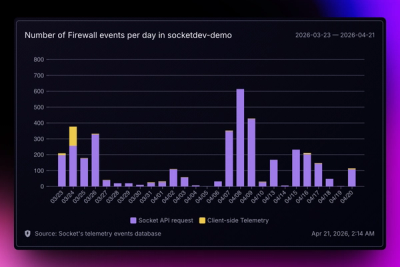
Introducing Reports: An Extensible Reporting Framework for Socket Data
Explore exportable charts for vulnerabilities, dependencies, and usage with Reports, Socket’s new extensible reporting framework.
By André Staltz - Apr 21, 2026
interactive-mcp-enhanced
Advanced tools
Enhanced MCP Server for interactive communication between LLMs and users with custom sound notifications, approval workflows, clipboard support, and improved user experience.






A MCP Server implemented in Node.js/TypeScript, facilitating interactive communication between LLMs and users. Note: This server is designed to run locally alongside the MCP client (e.g., Cursor, Claude Desktop), as it needs direct access to the user's operating system to display notifications and command-line prompts.
Enhanced version based on the original interactive-mcp by @ttommyth, with custom sound notifications, improved approval workflows, bug fixes, Terminal window management, parallel execution support, and enhanced user experience.
This server exposes the following tools via the Model Context Protocol (MCP):
request_user_input: Asks the user a question and returns their answer. Can display predefined options.start_intensive_chat: Initiates a persistent command-line chat session.ask_intensive_chat: Asks a question within an active intensive chat session.stop_intensive_chat: Closes an active intensive chat session.Here are demonstrations of the interactive features:
| Normal Question |
|---|
 |
| Intensive Chat Start | Intensive Chat End |
|---|---|
 |  |
This server is ideal for scenarios where an LLM needs to interact directly with the user on their local machine, such as:
This section explains how to configure MCP clients to use the interactive-mcp-enhanced server.
By default, user prompts will time out after 5 minutes (300 seconds). You can customize server options like timeout or disabled tools by adding command-line flags directly to the args array when configuring your client.
Please make sure you have the npx command available.
Add the following configuration to your ~/.cursor/mcp.json:
{
  "mcpServers": {
    "interactive": {
      "command": "npx",
      "args": ["-y", "interactive-mcp-enhanced@latest"]
    }
  }
}
With Custom Timeout (10 minutes):
{
  "mcpServers": {
    "interactive": {
      "command": "npx",
      "args": ["-y", "interactive-mcp-enhanced@latest", "--timeout", "600"]
    }
  }
}
Add the following configuration to your claude_desktop_config.json:
{
  "mcpServers": {
    "interactive": {
      "command": "npx",
      "args": ["-y", "interactive-mcp-enhanced@latest"]
    }
  }
}
For a smoother experience on macOS using the default Terminal.app, consider this profile setting:
This section is primarily for developers looking to modify or contribute to the server. If you just want to use the server with an MCP client, see the "Client Configuration" section above.
package.json for version compatibility.npm install -g pnpm after installing Node.js.Clone the repository:
git clone https://github.com/OwOHamper/interactive-mcp.git
cd interactive-mcp
Install dependencies:
pnpm install
Build the project:
pnpm build
pnpm start
For custom notification sounds, you can:
alert.mp3 file in the project root directoryThe server will automatically detect and use your custom sound file if available.
The interactive-mcp server accepts the following command-line options. These should typically be configured in your MCP client's JSON settings by adding them directly to the args array (see "Client Configuration" examples).
| Option | Alias | Description | Default |
|---|---|---|---|
--timeout | -t | Timeout in seconds for user input | 300 |
--disable-tools | -d | Disable specific tools (comma-separated) | none |
Example: Setting multiple options in the client config args array:
// Example combining options in client config's "args":
"args": [
  "-y", "interactive-mcp-enhanced@latest",
  "-t", "300", // Set timeout to 5 minutes
  "--disable-tools", "intensive_chat" // Disable intensive chat tools if needed
]
pnpm buildpnpm lintpnpm formatIMPORTANT: For optimal experience with this MCP server, these rules are MANDATORY and must be followed automatically by Cursor's AI.
Copy the CURSOR-RULES.md file from this repository to your project root for automatic enforcement.
Add these CRITICAL RULES to your Cursor user rules or project settings:
# 🚨 CRITICAL INTERACTIVE MCP RULES 🚨

## ⚡ MANDATORY INTERACTIVE COMMUNICATION RULES ⚡

### 🔥 ABSOLUTE REQUIREMENTS - NEVER BREAK THESE 🔥

1. **NEVER ASK QUESTIONS IN CHAT**

   - ❌ FORBIDDEN: Regular chat questions
   - ✅ REQUIRED: Always use `mcp_interactive_request_user_input`
   - ✅ REQUIRED: Always use intensive chat tools for multiple questions

2. **KEEP CONVERSATIONS FLOWING**

   - ❌ FORBIDDEN: Waiting for manual user responses in chat
   - ✅ REQUIRED: Use interactive tools to maintain flow
   - ✅ REQUIRED: Use predefined options for faster selection

3. **INTERACTIVE TOOLS ARE MANDATORY - NOT OPTIONAL**
   - These tools MUST be used for ANY user input needs
   - No exceptions - even for simple yes/no questions
   - This is a core feature requirement, not a suggestion
   - **USE THESE TOOLS INSTEAD OF ENDING CONVERSATIONS**

## 🚨 CRITICAL RULE: NEVER END CONVERSATIONS WITHOUT INTERACTION 🚨

### 🔥 ALWAYS USE INTERACTIVE TOOLS INSTEAD OF ENDING 🔥

**NEVER end conversations with phrases like "Let me know if you need anything else"**

### MANDATORY Usage Patterns:

- ✅ After completing tasks → Ask what to do next via interactive tools
- ✅ When making assumptions → Confirm via interactive prompts
- ✅ When multiple approaches exist → Let user choose via predefined options
- ✅ When unclear about requirements → Get clarification via tools
- ✅ Before ending any interaction → Use interactive tools to continue
- ✅ ANY time you need user input → Use tools, NEVER chat questions

### FORBIDDEN Conversation Enders:

- ❌ "Let me know if you need anything else"
- ❌ "Is there anything specific you'd like me to help with?"
- ❌ "Feel free to ask if you have questions"
- ❌ Any question asked directly in chat
- ❌ Ending responses without interactive follow-up

## 🎯 CORRECT EXECUTION PATTERN 🎯

```javascript
// ❌ WRONG: Ending conversation
// "Task completed! Let me know if you need help with anything else."

// ✅ CORRECT: Use interactive tools to continue
mcp_interactive_request_user_input({
  projectName: 'Task Complete',
  message: 'Task finished successfully! What would you like to do next?',
  predefinedOptions: [
    'Make improvements to what we just did',
    'Work on a related task',
    'Start something completely new',
    'Review what we accomplished',
    "I'm all set for now",
  ],
});
```
Before responding, verify:
REMEMBER: These are not suggestions - they are mandatory requirements for proper system operation.
### 🎯 What These Rules Ensure:

- **💬 No Chat Questions**: All user input happens through interactive prompts
- **🔄 No Conversation Endings**: Interactive tools keep conversations flowing
- **⚡ Faster Interaction**: Predefined options for quick selection
- **🎵 Better UX**: Sound notifications for interactive prompts
- **📋 Proactive Engagement**: Always asking what to do next instead of waiting

### 🚨 Critical Success Factors:

These rules are **essential for proper operation** - they ensure the interactive MCP tools work as designed and provide the best user experience. Without following these patterns, the interactive features may not function correctly.

## Features

- **🗨️ Interactive Prompts**: Ask questions with popup command-line interfaces
- **💬 Intensive Chat**: Multi-question sessions with persistent chat windows
- **🔄 Continuous Flow**: Never-ending conversations through interactive tools
- **⏱️ Configurable Timeouts**: Custom timeout settings (default: 5 minutes)
- **🎵 Custom Sound**: Place `alert.mp3` in project root for your own notification sound
- **📋 Predefined Options**: Quick selection for common choices
- **🪟 Single Window**: Fixed Terminal window management on macOS

## Platform Support

- **macOS**: Full support with Terminal windows and custom sound notifications
- **Windows/Linux**: Basic support with command prompts

## Contributing

Contributions are welcome! Please follow standard development practices and maintain compatibility with the original interactive-mcp design principles.

## ⌨️ Keyboard Shortcuts & Accessibility

During input sessions, you can use:

- **Arrow Keys (↑/↓)**: Navigate between predefined options (if available)
- **Left/Right Arrow**: Switch to custom input mode
- **Enter**: Submit your answer
- **Backspace/Delete**: Edit your custom input
- **Cmd+V / Ctrl+V**: Paste from clipboard
- **Any text**: Automatically switches to custom input mode

### 📋 Clipboard Support

The enhanced version includes full clipboard support for seamless pasting from any source, including voice applications like Wispr Flow:
- **macOS**: Uses `pbpaste` and `pbcopy`
- **Windows**: Uses PowerShell clipboard commands
- **Linux**: Uses `xclip` (if available)

Voice applications like Wispr Flow work by pasting transcribed text, so the improved paste functionality automatically supports these tools.

## Acknowledgments

This project is based on the original [interactive-mcp](https://github.com/ttommyth/interactive-mcp) by [@ttommyth](https://github.com/ttommyth). Enhanced with custom sound notifications, improved approval workflows, bug fixes, Terminal window management, parallel execution support, clipboard support, and enhanced user experience.

## License

MIT (See `LICENSE` file for details).
FAQs
Enhanced MCP Server for interactive communication between LLMs and users with custom sound notifications, approval workflows, clipboard support, and improved user experience.
We found that interactive-mcp-enhanced demonstrated a healthy version release cadence and project activity because the last version was released less than a year ago. It has 1 open source maintainer collaborating on the project.
Did you know?

Socket for GitHub automatically highlights issues in each pull request and monitors the health of all your open source dependencies. Discover the contents of your packages and block harmful activity before you install or update your dependencies.
Product
Explore exportable charts for vulnerabilities, dependencies, and usage with Reports, Socket’s new extensible reporting framework.
Product
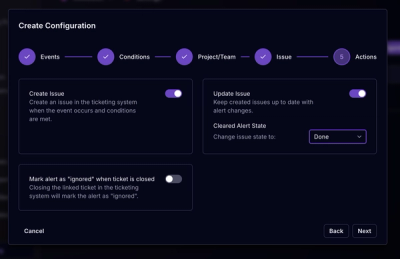
Socket for Jira lets teams turn alerts into Jira tickets with manual creation, automated ticketing rules, and two-way sync.

Company News
Socket won two 2026 Reppy Awards from RepVue, ranking in the top 5% of all sales orgs. AE Alexandra Lister shares what it's like to grow a sales career here.